Layer
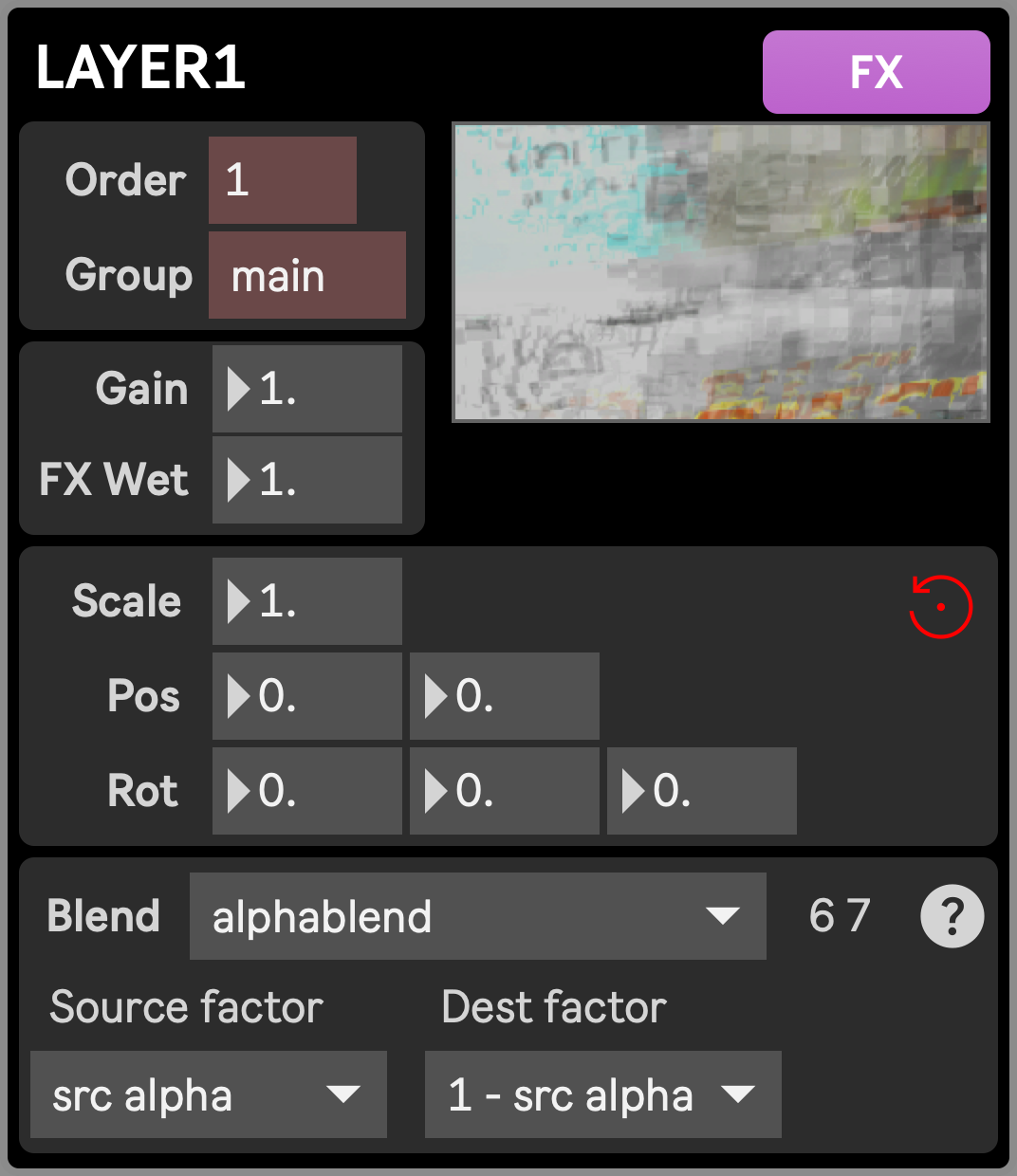
The Layer module is central to the Visual Stage app, as it is the module responsible for bringing any source material to screen. It can be thought of as the equivalent of a layer in an image creation software, or a track in a video editing software. Twelve instances of this module are available, meaning twelve layers to superimpose and play with, in addition to other modules that have their own layer (skybox, performers).
The source input for each of the 12 instances of the Layer module is set in the Setup layout (see Source assignment and layer ordering), and is part of the Setup presets, together with the Order and Group parameters described below. All other parameters are part of the Scenic presets.
These modules can be accessed from the Mixer layout.
Parameters and controls
Section titled “Parameters and controls”- Order: defines the order in which layers are drawn in the final output (or within their Group, if assigned to one). Layers with a higher Order number are drawn on top of those with a lower one, potentially covering them.
- Group: defines within which context the layer gets composited.
maindesignates the global context of the app, whileAandBare two sub-contexts driven by the Group modules. - Gain: gain of the layer. 1. means the layer is fully displayed, while 0. means it is completely faded out
- FX Wet: sets the wet/dry balance between the layer’s source image (0.) and its processed version through the FX Rack (1.)
- FX button: opens the FX Rack window, where effects can be applied to the layer’s texture
- Reset button: resets position, rotation, scale, blending, gain and fx wet to their initial value
- scale (Scale): uniformly scale the layer horizontally and vertically
- pos_x|pos_y (Pos): move the layer horizontally (x) or vertically (y)
- rot_x|rot_y|rot_z (Rot): rotate the layer on the x, y or z accessible around its center
- blend_mode (Blend): the blend mode defines the way this layer gets blended with subsequent layers (ie. layers with a smaller Order number than this layer, within the same Group). Only basic blend modes are available (add, multiply, screen, exclusion, colorblend, alphablend, coloradd, alphaadd), in addition to a few custom ones (Mask, Lightn, Hide, Dark, Negate). Setting the blend mode is a way to set both blend_src_factor and blend_dst_factor at the same time. For math friendly people, the blending formula is OUTPUT = (SRC_IMAGE * blend_src_factor) + (DEST_IMAGE * blend_dst_factor), where SRC_IMAGE is the texture of the current layer, DEST_IMAGE is the result of the blending of the subsequent layers, blend_src_factor and blend_dst_factor are defined below, and OUTPUT is the resulting image, possibly to be blended with layers above it. The ? button next to the Blend menu recalls this formula.
- blend_src_factor (Source factor): the factor by which is multiplied the source image (the texture of this layer). Available values are zero, one, dst color, src color, 1 - dst color, 1 - src color, src alpha, 1 - src alpha, dst alpha, 1 - dst alpha, src alpha saturate.
- blend_dst_factor (Dest factor): the factor by which is multiplied the destination image (the texture resulting of the blending of subsequent layers). available values are zero, one, dst color, src color, 1 - dst color, 1 - src color, src alpha, 1 - src alpha, dst alpha, 1 - dst alpha, src alpha saturate.