Presets Grid

To coordinate Scenic, Performer and Blackbox presets, the Visual Stage employs a master Presets grid — an interface that functions as a control matrix for grouping and triggering combinations of presets into holistic “Scenes”. Activating a Scene can simultaneously launch multiple preset transitions, whether they are instantaneous or interpolated at variable speeds.
The Presets grid enables semi-automated performances, with the option for real-time control and improvisation. It acts as a conductor’s score, providing a framework for orchestrating the timing and interaction of camera movement, scenic shifts, and performer animation into a coherent and expressive audiovisual experience.
Each Scene is represented by a line in the table, and is composed of the following elements, all optional except for the first one:
- A unique number ID (the number of the line the scene is at)
- A Title
- A Description
- And for each type of performance preset:
- A preset to recall
- The interpolation time to reach that preset
Triggering a scene is done either by clicking on the scene number on the left column, typing the scene number in the Scene number box, or through the Open Stage Control app or generic OSC messages. This will arm the scene, which will then triggered by the next quantized tempo pulse according to the Metronome settings.
Holding cmd while clicking on a scene triggers the scene immediately, regardless of quantization settings, and with zero interpolation time. This allows to immediately recall the final state of a scene without having to wait for the qantization to kick in and the interpolation to finish.
Editing the scenes is done by directly clicking in the relevant cell and typing the desired text (title, description), value (interpolation time in seconds), or choosing the preset to recall in the popup list:
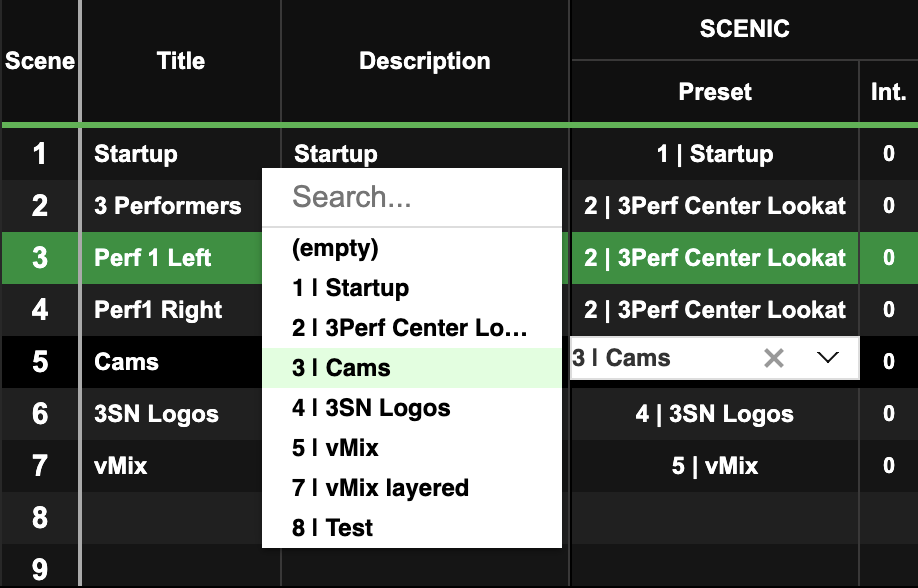
Here, we are editing which Scenic preset to recall for the scene 5. Scene 3 highlighted, meaning it is the last recalled scene.
Scenes can be reorganized by clicking their number in the first column and dragging them to the desired position. Further editing options are available by right-clicking on a scene:
- Undo
- Redo
- Copy scene
- Paste scene
- Insert new scene at current position
- Clear current scene (make it blank)
- Remove current scene (will rise all subsequent scenes by one line)
- Append new empty scene at the end of the table
- Remove last scene from the end of the table
Notice that any change done to the grid is automatically saved in the project folder in presets/presets.grid.json, but you can still revert your changes using the undo feature.
Scene randomization
Section titled “Scene randomization”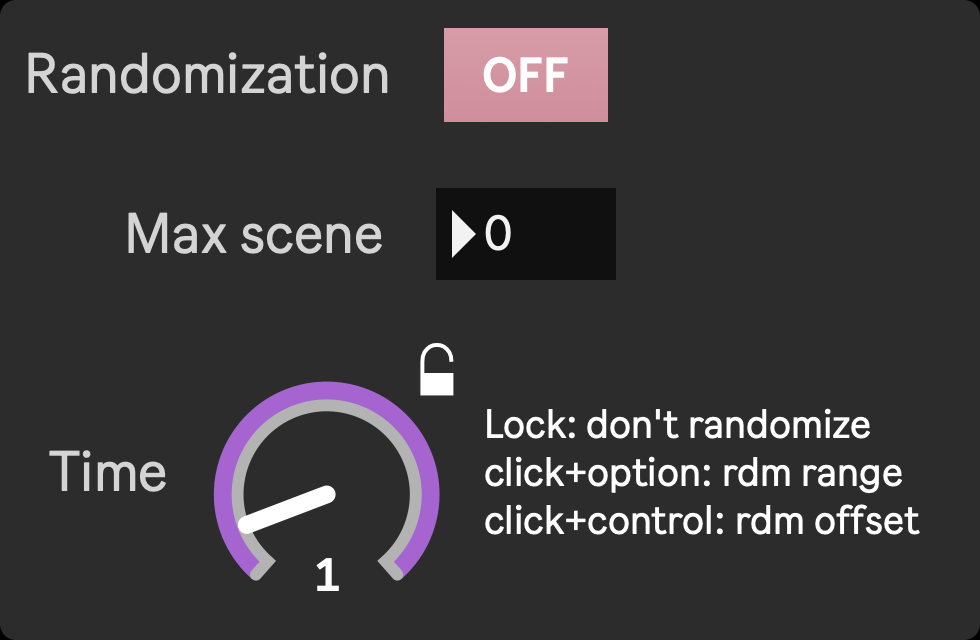
Scene randomization automatically triggers scenes randomly, at a random time interval. It is an experimental feature that is meant to be improved in the future. In its current implementation is very barebone, only a few settings are available:
- Randomization on/off: turns on/off automatic randomized scene triggering
- Max scene sets the maximum scene number that can be triggered. Ie. a max scene of 7 means that only scenes from 1 to 7 can be triggered by the randomizator. Scenes above 7 will be ignored.
- The Time dial sets the duration between each randomization, as well as the range in which the duration can fall. Each scene randomization will generate a random duration within the defined range after which the next scene will be triggered.
click + drag: set the durationclickthe lock: prevent duration randomizationoption + click + drag: change the random range widthcontrol + click + drag: change the random range offset