Open Stage Control
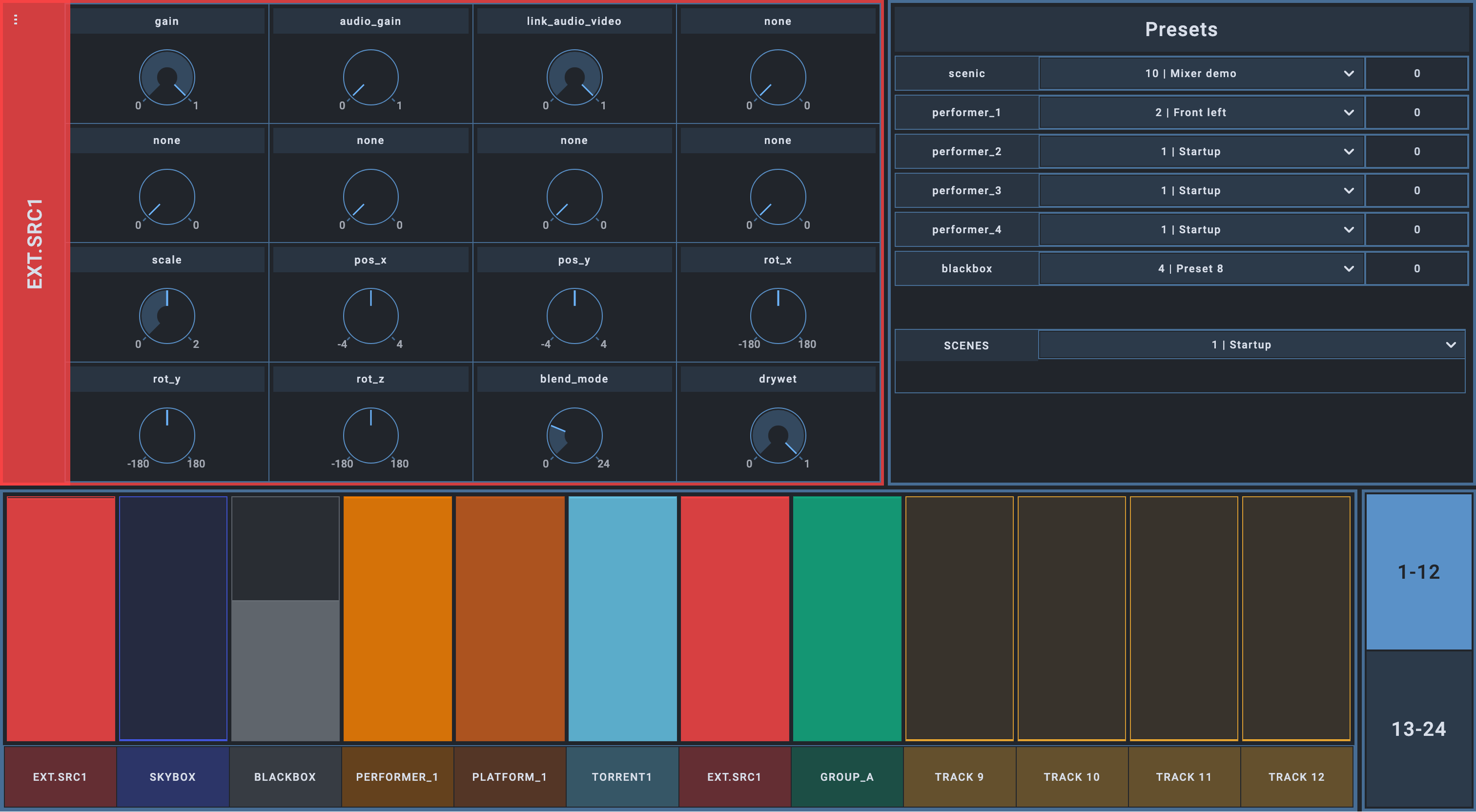
Open Stage Control is a customizable, browser-based interface software that allows for dynamic OSC (Open Sound Control) communication between user input devices and real-time media systems. In the context of the Visual Stage app, we are using Open Stage Control on an iPad as a remote software control surface, providing flexible, tactile interaction with the performance environment.
The current interface has been custom-designed to control the following parts:
- Mixer track selection
- Mixer track faders
- Macro controls for the selected track
- Preset recall for Scenic, performer and blackbox presets, with settable interpolation time
- Scene recall from the Presets grid
The Open Stage Control interface is bidirectional: any change in the Visual Stage app, including macro tweaking, track configuration and selection, and even updating the presets grid or presets lists, is updated in real time in the interface.
Communication is done through the OSC implementation described here.
As the project evolves, we plan to expand Open Stage Control to include more complex scene automation, performance cueing, and AI-assisted behaviors, reinforcing its role as a central tool for live interactivity within our networked stage environment.
How to install
Section titled “How to install”Currently, here are steps for using the Visual Stage’s Open Stage Control interface:
- Download Open Stage Control
- Extract it in the location of your choice
- Drag open-stage-control.app in your Application folder
- Open the open-stage-control app from your Application folder
- Configure the server
- Click the three dots in the top left corner
- Click “Load”
- Select TT_OSC_CONFIG.config located in /Telematic-Theater/OSC/
- Once the config file is loaded, click the folder icon in the top right corner, at the the “load” line
- Select TT_CONSOLE.json located in /Telematic-Theater/OSC/
- Click the “Play” button in the top left corner to start the server
- You can either use the builtin client window, open a session from your browser locally (127.0.0.1:8080) or from another computer connected to your local network (check the ip address and port in the Open Stage Control console)
- Lastly, open the Telematic-Theater.maxpat and you will see the interface populated with controls.