Network
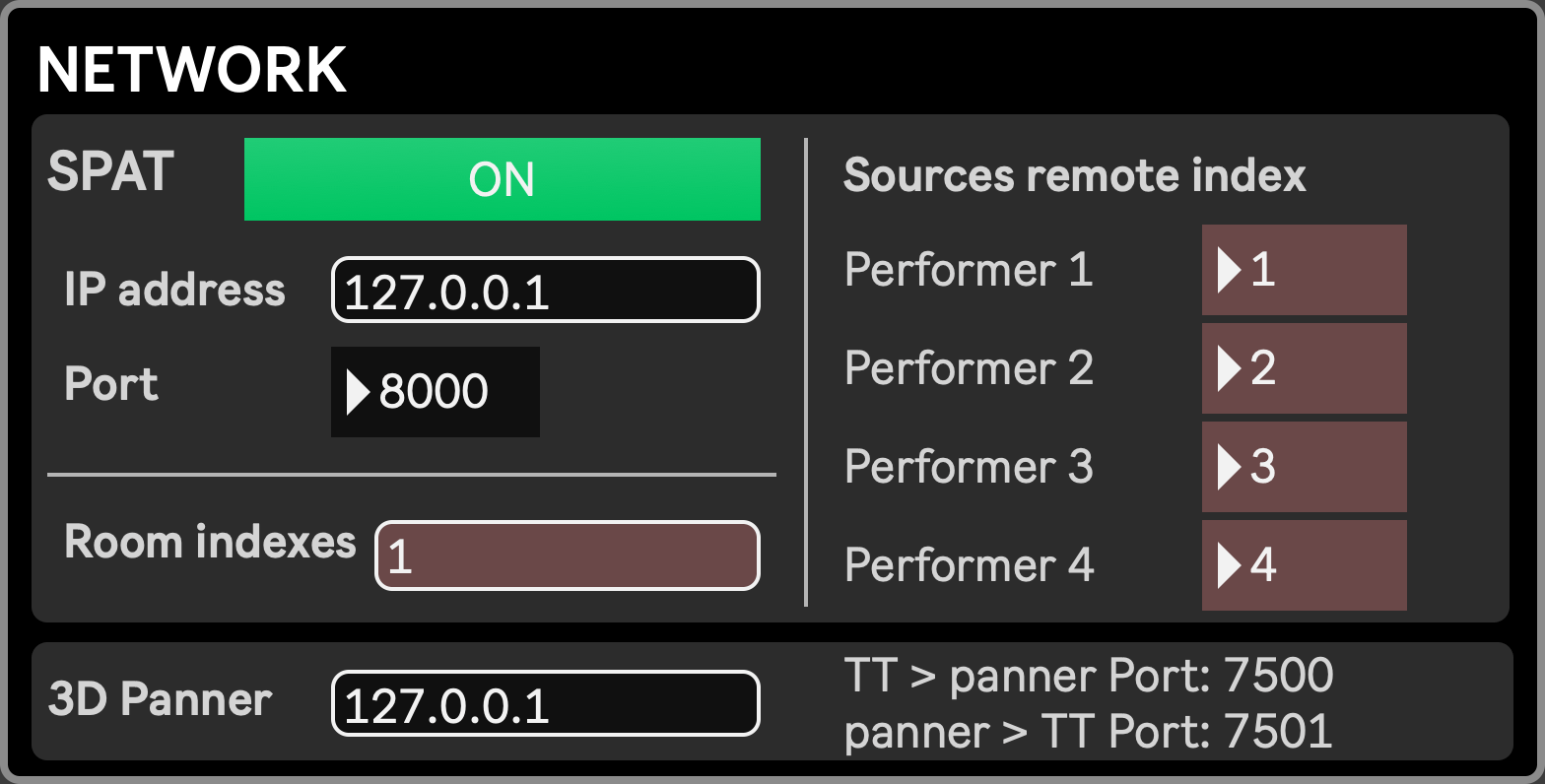
This module sets OSC communication with remote apps. It is divided in two parts. If you want to monitor OSC messages going in and out of the app, you can check the OSC Monitor, located under the Tools menu in the Dashboard.
The Spat section hosts all required parameters to make the Visual Stage app work properly in tandem with Spat Revolution. See Installation/Spat Revolution for more detailed info. Notice that the IP adress and port are stored in the app’s local settings (black background), while the Source remote and Room indexes are stored in the projects setup preset. This way, a project can match a specific Spat configuration, while being possibly ran in different places on different hardware with a different network setup.. This allows a project to run identically on different hardware or network configuration, whether Spat runs on the same computer or a remote one.
- ON/OFF: Enable/disable OSC communication between the app and Spat Revolution. Can be disabled if Spat Revolution isn’t used.
- Destination:
- IP address: set the ip address of the computer hosting Spat Revolution. Set it to 127.0.0.1 if Spat Revolution runs on the same computer as the Visual Stage app.
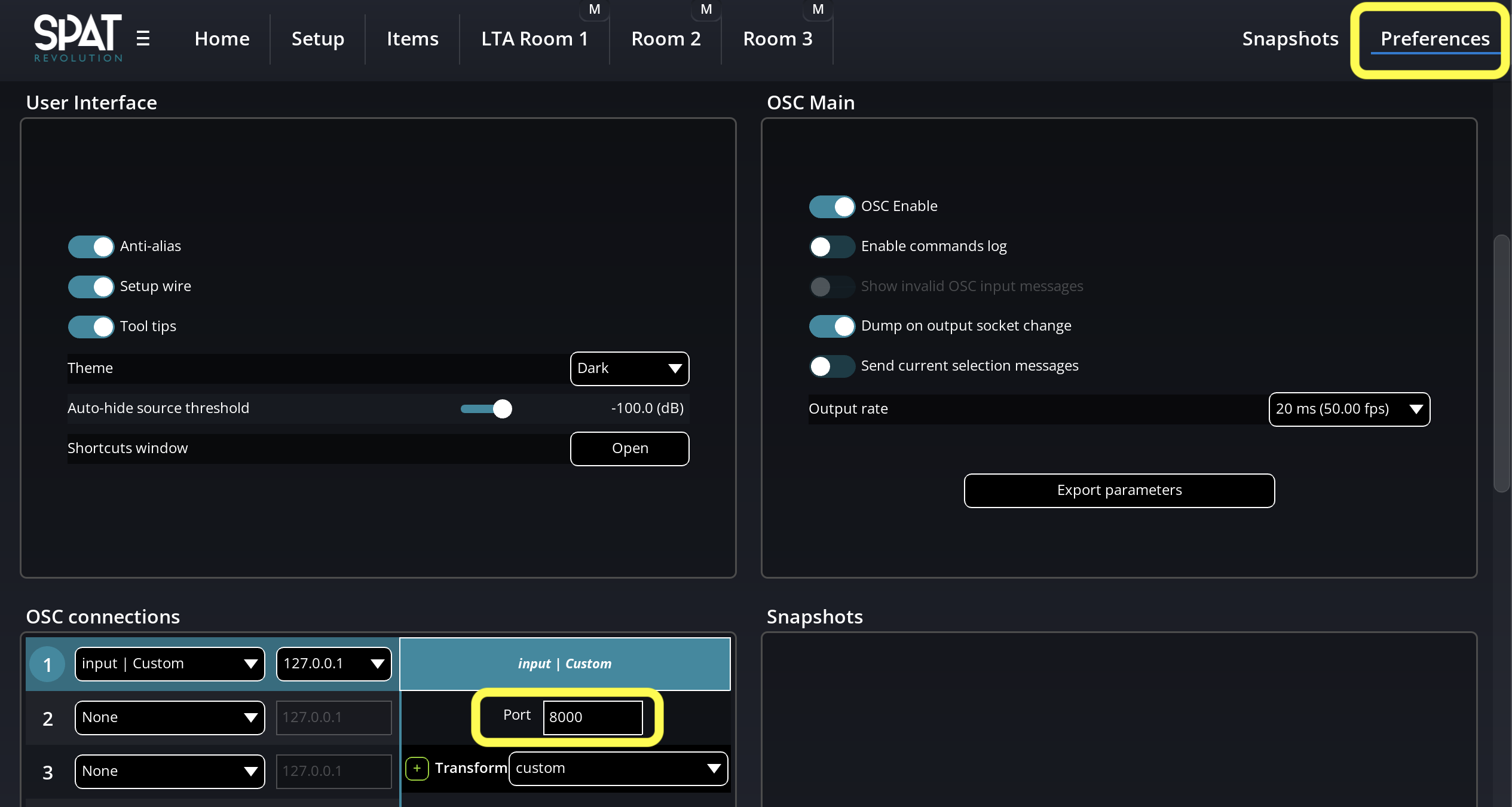
- Port: set the port to which send OSC data. Make sure this port matches the one set in Spat Revolution OSC settings:
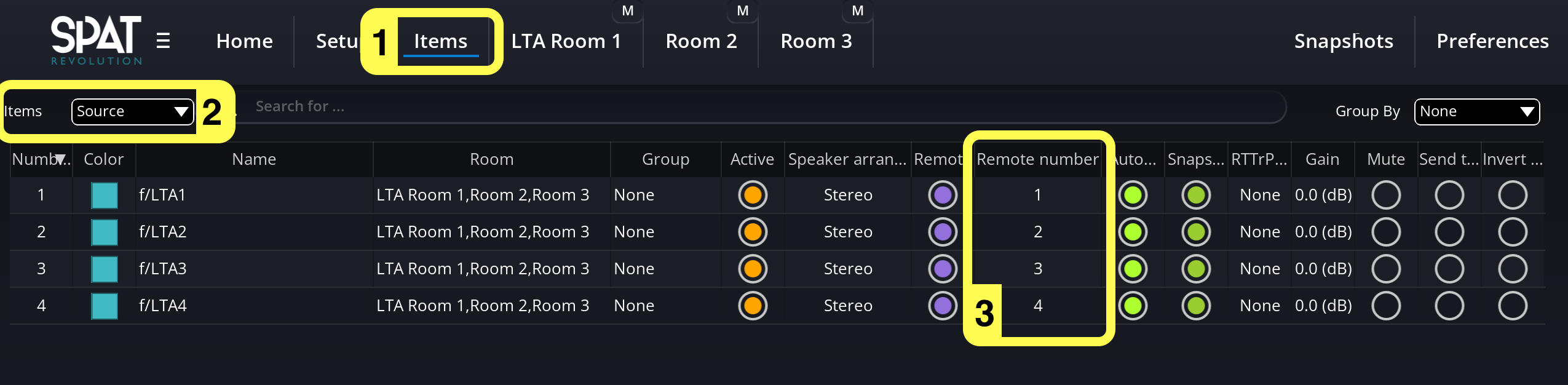
- Sources remote index: set the remote index of the Spat source used for each Performer. In Spat Revolution, these numbers can be found and changed under the Items tab:
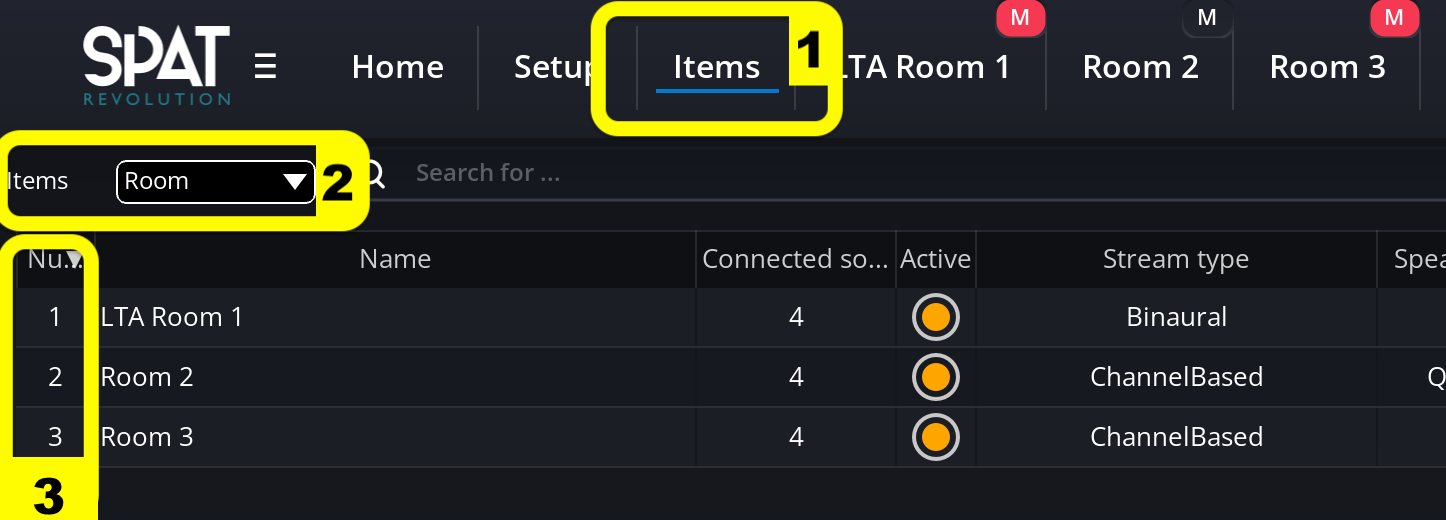
- Room indexes: set the index(es) of the Spat room(s) to which send room data, including listener position and rotation, and reverb parameters. Several room indexes can be entered, separated by a space. The room number can be found under the Items tab of Spat Revolution:
Panner
Section titled “Panner”Set here the ip adress of the computer running the Panner.