Media player
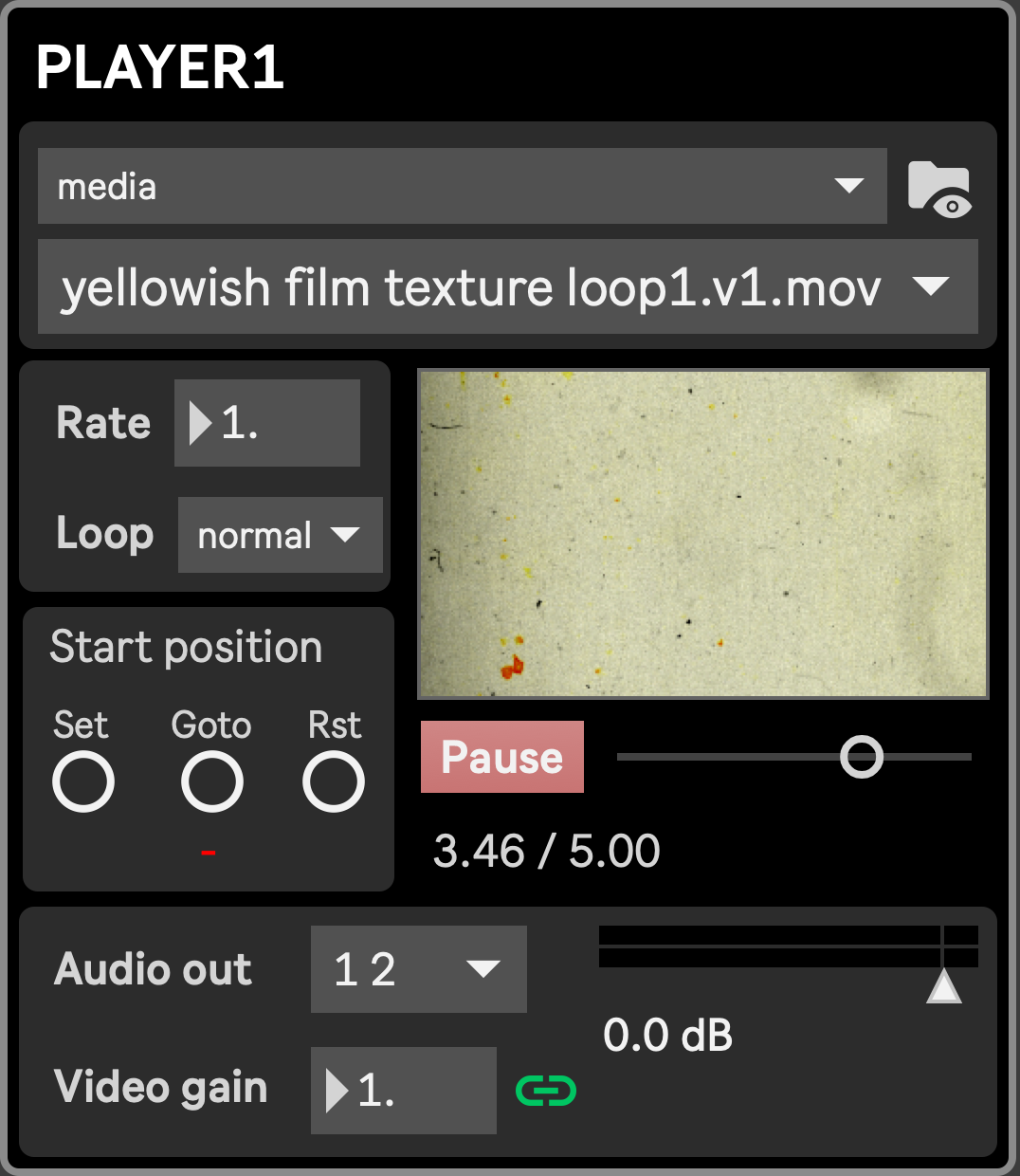
The Media player, of which six instances are available, is a multipurpose asset player which can handle videos, still images and audio files present in \<project name\>/assets/. They are typically used as sources for the Layer modules, the Blackbox, platform textures, as placeholders for performer textures, or as inputs for displacement or blend effects available in the FX Racks.
Supported file are:
- video: mov, mp4, mpeg, encoded with usual codecs (ProRes 422/4444, h264, h265, jpeg, HAP and others handheld by ffmpeg), although the preferred one is HAP
- image: jpeg, png, gif, tiff, bmp, tiff
- audio: aiff, wave, flac, mp3, m4a
File selection
Section titled “File selection”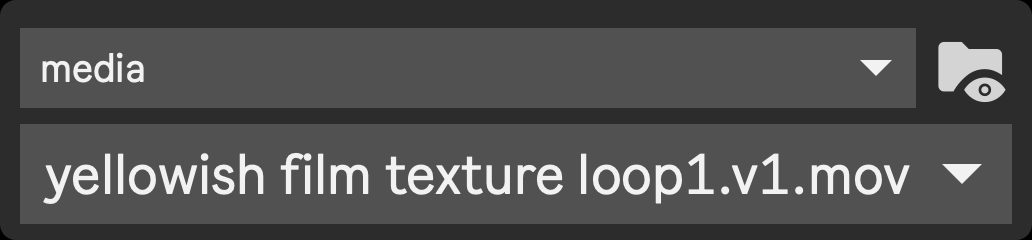
- media_folder: Select a folder in the top menu. Listed folders are all part of
\<project name\>/assets/(including subfolders up to 5 levels) and can be named and organized at will by the user. Selecting a folder will show every compatible file in that folder and its subfolders (up to 5 levels). The special entry [all] will show every files in the assets folder. - media_file: Select the desired file to play in the bottom menu
If you change the content of the assets folder (by adding/removing/renaming some files or folders in it) after the project is loaded, the folder and file menus should automatically update, while preserving the last selection if it is still available.
At any time you can press the “Reveal folder” icon to open a Finder window pointing in the set folder.
Parameters
Section titled “Parameters”Available parameters are:
- Rate: speed at which the file is read. A value of 1. is the normal speed, above 1. is higher speed, between 0. and 1. is slower speed, and negative values play the file in reverse.
- Loop: defines the loop mode.
- off: the file doesn’t loop and stop playing when it reaches its end
- on: the file loops back to its beginning after reaching its end. Note that when the file gets played for the second (or subsequent) time, the start position will be ignored.
- Play/Pause (located under the preview): plays/pauses the playback. This parameter is part of the scenic presets, so you can pause/play the selected media between presets.
- Start Position: optionally define a start position to start reading from. The current value, displayed in red, is stored in scenic presets. If you save multiple presets with different values, the playhead will jump to those values as you recall the presets. You can click “Rst” to remove the start position, in which case no jump will occur at preset recall.
- Set: sets the Start position to the current playhead position.
- GoTo: moves the playhead to the stored start position (usefull for previewing)
- Rst: resets the value to
-(no start position), preventing any jump at preset recall
- audio_volume: sets the module’s audio output volume
- audio_out: output channels for that module’s audio
- fade_img_w_snd (link icon): when “Fade image with sound” is enabled, changing the audio volume will also change the image opacity, allowing to manually control both the image and audio with just one Macro control.