Tracks settings
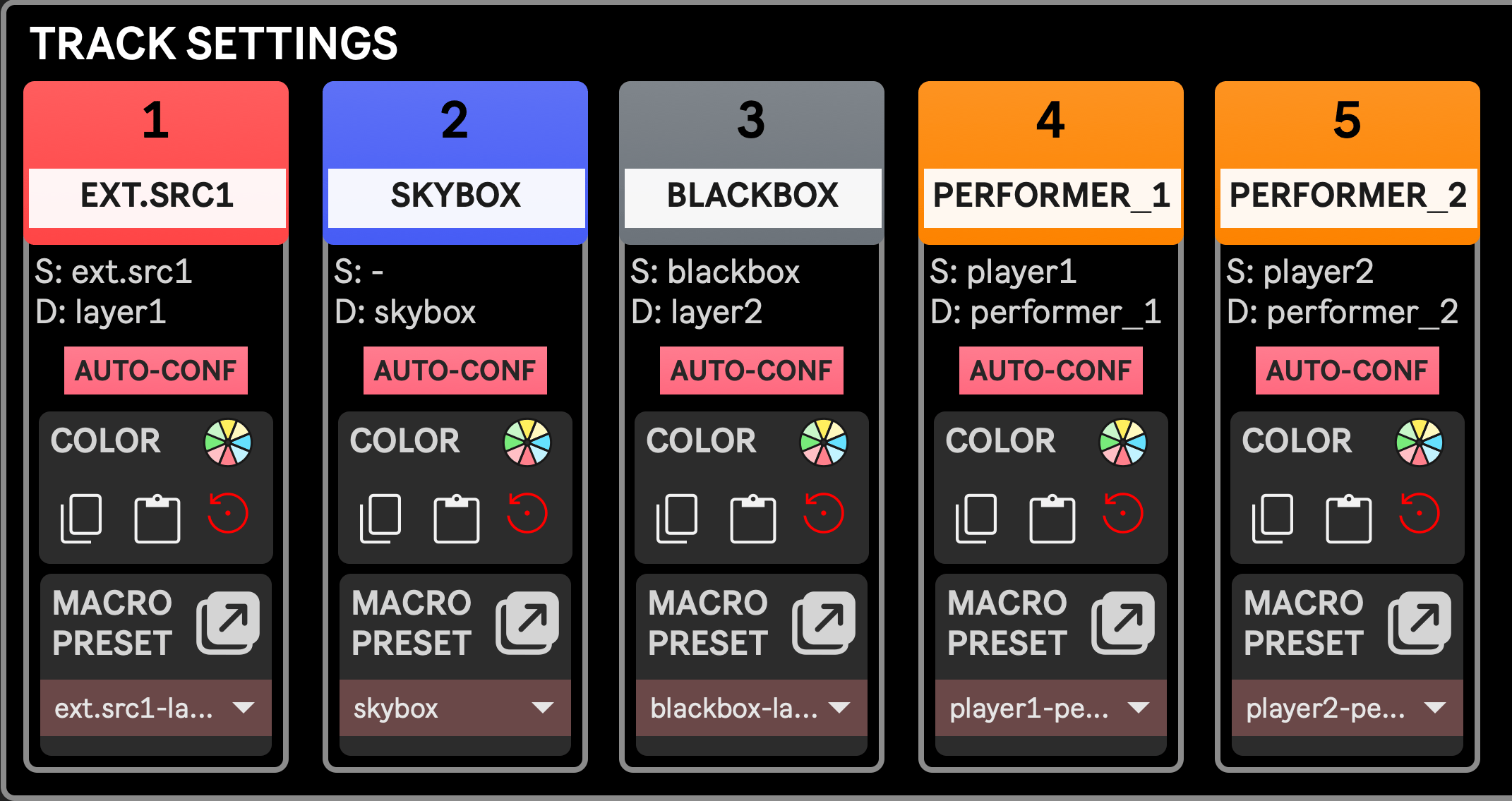
Track settings allow setting the name, color and macro preset for each of the 24 tracks of the Mixer.
While the name and color are two ways to allow the user to mark each track in a meaningful way suiting their project, the Macro preset determines what the track actually controls.
Although name, color and Macro preset can be set manually by the user, they can also all be automatically defined using the Auto-config Mixer Track feature alongside the Mixer Layout Wizard, both available in the Interface section of the Project settings. Note that only tracks 1 to 20 are handled by these two features; tracks 21 to 24 are always left out, reserved for macros mapped by hand.
From top to bottom:
- Track number
- Track color: Click the colored area to open the system’s color picker and select a color for that track
- Track name: Click the black label on white background to edit the track name
- Source and Destination indicators: shows which source (
S:) and destination (D:) modules are aligned with that track in the Mixer layout, according to the Mixer Layout Wizard feature - Auto-conf button: Click this button to automatically recall the Macro preset with a name matching the source and/or destination modules aligned with that track. If no preset exists for that specific combination, a new one will be created by following the Default Macros. Note: the “Auto-config Mixer Track” feature does that automatically for every tracks.