Modules settings
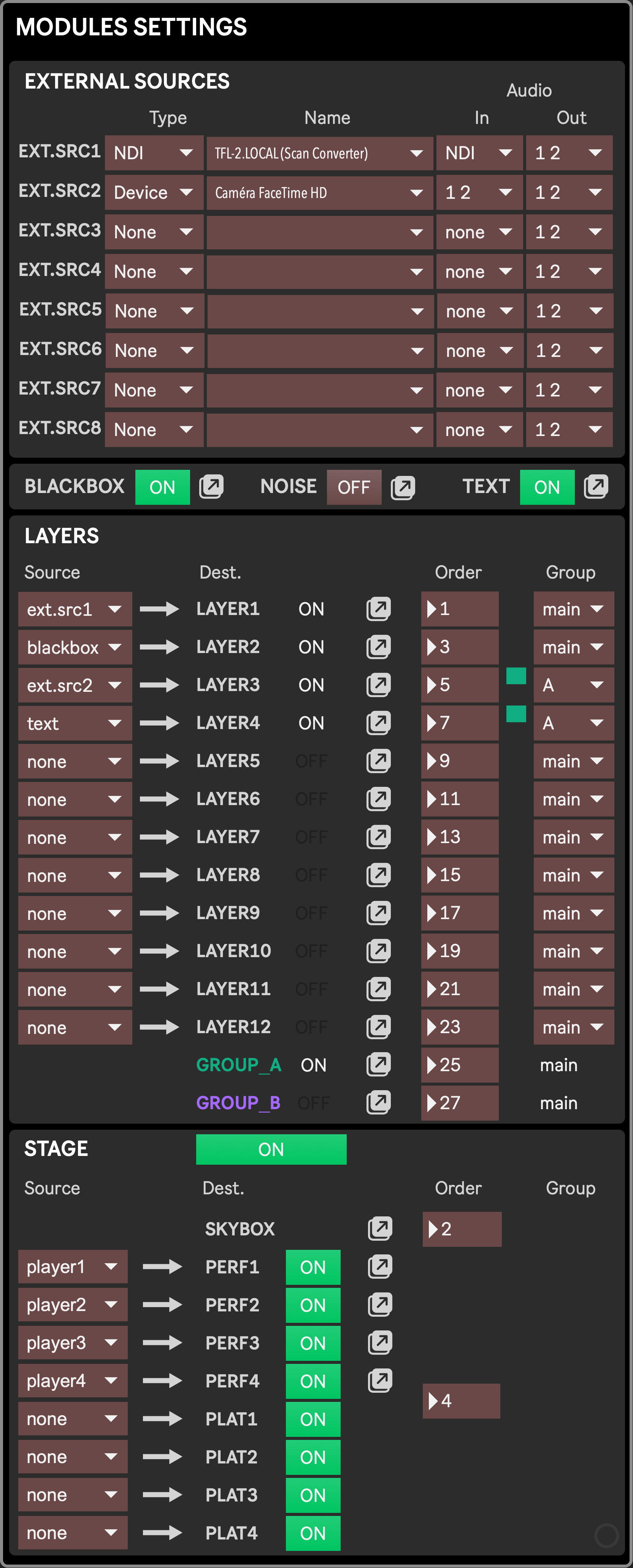
This module is probably the most critical part of the Setup as it defines which modules are in use, how they are routed between each other, and in which order they are rendered in the final output.
The app comes with a predefined list of Source and Desstination modules, and those get enabled in this section.
- Source modules
- External Source modules are enabled when a source is set in the External Sources settings
- Blackbox, Noise, and Text are enabled with a toggle in the Generative source section
- Torrent and Player modules are enabled when selected as a source in the Layers settings or Stage settings sections.
- Destination modules
- Layers are enabled as soon as a source is set for them in the Layers settings section
- Groups are enabled when at least one layer has their “Group” attribute set to them in the Layers settings section
- The Stage can be manually enabled in the Stage settings section, with each performer and platform can be enabled/disabled individually
Sources
Section titled “Sources”External Sources settings
Section titled “External Sources settings”This section is dedicated to set the video and audio inputs of every External source module, as well as their audio output.
- Type: Select between
- Device: webcams, cameras, Blackmagic devices…
- Syphon: Get the feed of any software that can produce a Syphon output (OBS, Syphoner, Max, NDISyphon…) and is running on the same computer as the app.
- NDI: Get any NDI feed coming from your network.
- Name: Once a type is selected, the Name menu is populated with every available source for that type. Select the one you want to use. You can refresh available sources by selecting “Update Ext.Sources” in the Tools menu from the Dashboard
- Audio In: You can use the module as an audio router, by selecting either an audio input coming from your soundcard, or the NDI input if you already selected NDI as the source type.
- Audio Out: Then the audio can be sent to one of the 8 available stereo outputs. The menu will always show eight outputs, but the true number of available outputs will depend on your soundcard and Audio settings.
All of these settings are stored in the Setup presets, hence the fact that they are set outside of the External source modules themselves, for which other parameters are stored in Scenic presets.
Generative sources settings
Section titled “Generative sources settings”
Modules listed in here can be enabled without further configuration. Clicking a ↗️ icon opens the related module in a separate window, although enabled modules will be accessible from the Mixer layout anyway.
Destinations
Section titled “Destinations”Layers settings
Section titled “Layers settings”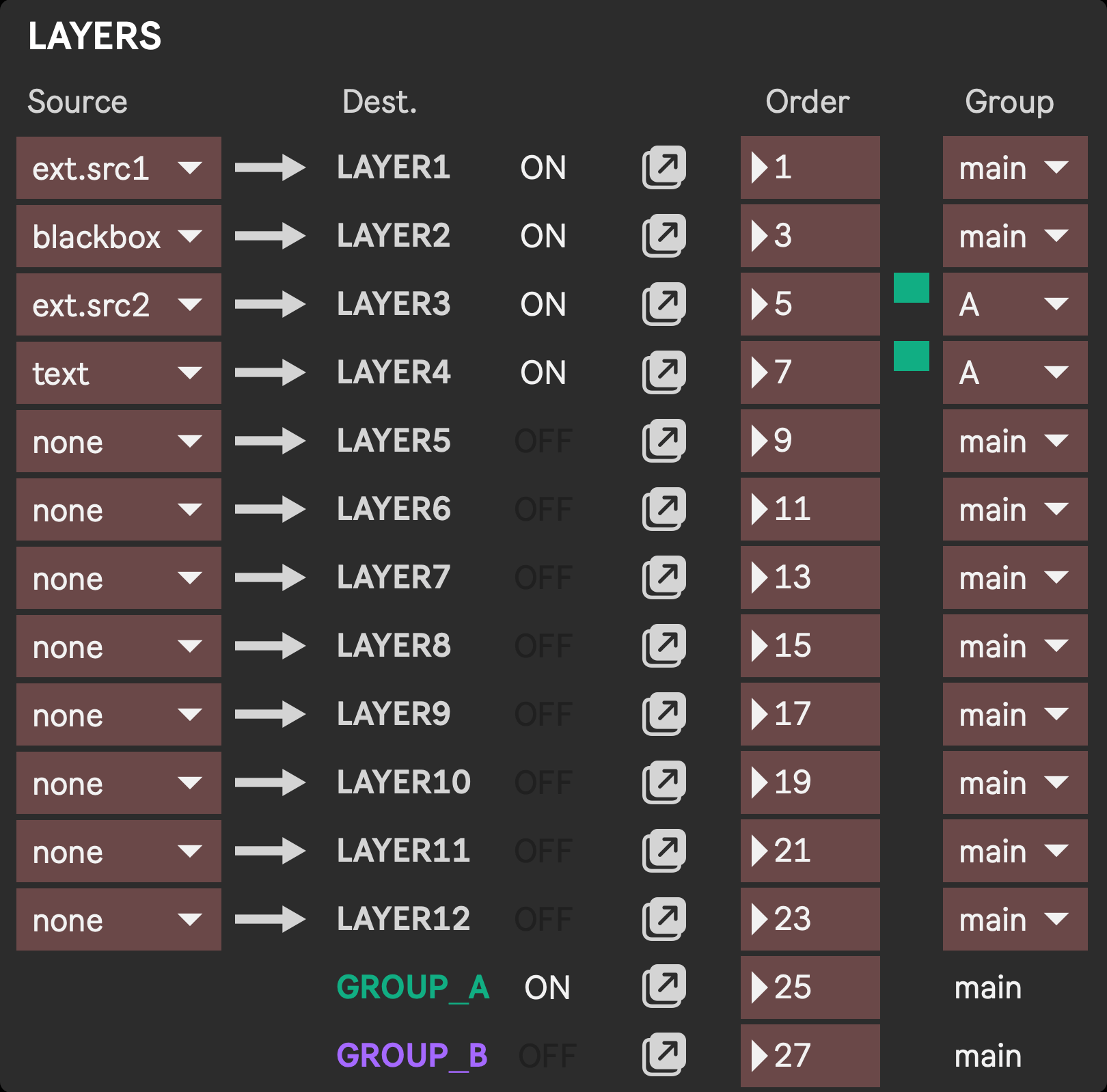
This sections shows the twelve Layer and two Group destination modules available. For each destination:
- Source (Layers only): Set which Source module goes into that destination
- Dest.: Name of the destination module
- ON/OFF indicator: shows whether the destination module is enabled or not. It gets enabled as soon as a source is selected for it
- ↗️ icon: opens the module in a separate window. Enabled layers will be accessible from the Mixer layout anyway.
- Order: Defines the order in which are drawn in the final output. Modules with a higher order number will be drawn on top of modules with a lower number, potentially covering them. For Layers assigned to a Group, the Order number defines the drawing order within that Group. The Group itself will be drawn according to its own Order attribute
- Group: Defines in which group destinations are drawn.
maindesignates the global context of the app, while A and B are two sub-contexts driven by Group modules A and B. See the Group module for more info.
Stage settings
Section titled “Stage settings”The Stage is divided in multiple sub-modules, drawn on two dedicated layers. One for the skybox, and the other for all performers and platforms.
- Stage on/off toggle: enables/disables the stage and all of its sub-modules. Once enabled, its submodules can selectively disabled if only a few are required
- Source (performers and platforms only): Set which Source module goes into that destination
- Dest.: Name of the destination
- ON/OFF: toggle this part on/off
- ↗️ icon: opens the module in a separate window. Since each performer comes with its own platform, opening the Performer 3 window also shows the Platform 3. All of them can also be found in the Stage layout
- Order: Defines the order in which are drawn in the final output. Modules with a higher order number will be drawn on top of modules with a lower number, potentially covering them.